

Australian ETA App – Download, Setup and Troubleshooting
The AustralianETA app is the official government application for applying for an Electronic Travel Authority to visit Australia. This guide covers how to download, set up, and troubleshoot the app, along with step-by-step instructions for completing your ETA application on mobile.
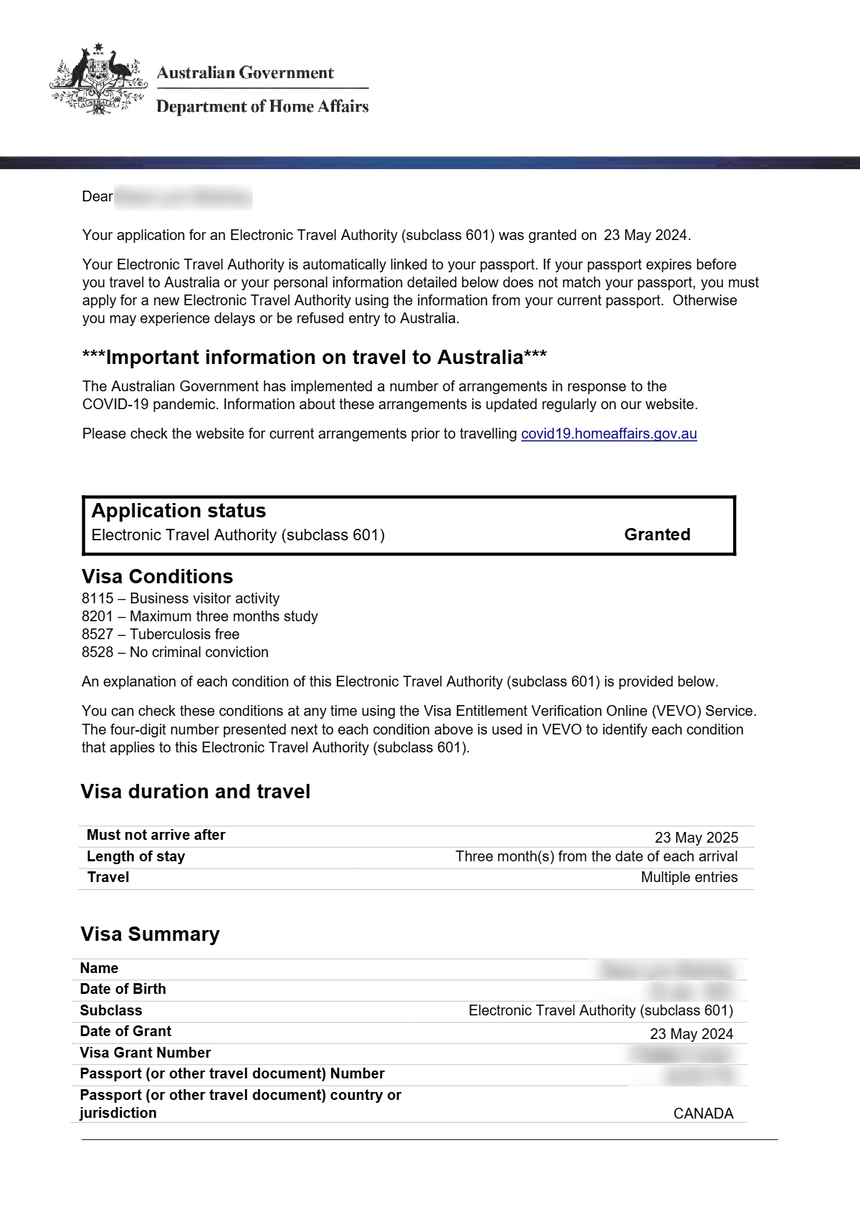
For a complete overview of the ETA system, see our ETA Australia guide.
What Is the AustralianETA App?
The AustralianETA app is the official mobile application developed by the Australian Department of Home Affairs. It is the primary method for eligible travelers to apply for an Electronic Travel Authority (Subclass 601).
Key features of the app:
- Passport scanning – Scan your passport’s MRZ (Machine Readable Zone) using your phone camera
- Facial recognition – Verify your identity through facial biometric matching
- Application submission – Complete and submit your ETA application entirely within the app
- Status tracking – Monitor your application status in real-time
- Digital ETA – Your approved ETA is linked electronically to your passport
The app is available for both iOS and Android devices and is free to download. The ETA application fee of AUD 20 is paid separately during the application process.
How to Download the AustralianETA App
For iPhone (iOS)
- Open the App Store on your iPhone
- Search for “AustralianETA“
- Look for the official app by the Australian Government – Department of Home Affairs
- Tap Get to download and install
- The app requires iOS 14.0 or later
For Android
- Open the Google Play Store on your Android device
- Search for “AustralianETA“
- Look for the official app by the Australian Government – Department of Home Affairs
- Tap Install to download
- The app requires Android 8.0 or later
Important: Only download the official AustralianETA app from the official app stores. Third-party apps or websites claiming to offer ETA applications may be fraudulent. Always verify the publisher is the Australian Government.
How to Set Up and Use the AustralianETA App
Step 1: Create an Account
When you first open the app, you will need to create an account:
- Enter your email address
- Create a secure password
- Verify your email through the confirmation link
- Accept the terms and conditions
Step 2: Scan Your Passport
The app uses your phone’s camera to scan the Machine Readable Zone (MRZ) at the bottom of your passport’s photo page:
- Ensure good lighting conditions
- Place your passport flat on a stable surface
- Align the MRZ within the camera frame
- Hold steady until the scan completes
- The app will extract your name, passport number, nationality, and expiry date
Step 3: Verify Your Identity
The app performs facial biometric verification:
- Position your face within the on-screen frame
- Follow the prompts (turn head, blink)
- Ensure good lighting and a clear background
- Remove glasses or hats if prompted
Step 4: Answer Eligibility Questions
You will be asked a series of questions about:
- Your travel history
- Criminal history
- Health conditions
- Previous visa refusals
- Character declarations
Answer all questions honestly. False declarations can result in visa refusal and future travel bans.
Step 5: Pay the Application Fee
The ETA costs AUD 20 and can be paid by:
- Credit card (Visa, Mastercard, American Express)
- Debit card
- Other payment methods accepted by the app
Step 6: Submit and Wait
Most applications are processed within minutes. You will receive a notification when your ETA is approved or if additional processing is needed.
For complete application instructions, see our how to apply guide.
Common AustralianETA App Issues and Troubleshooting
App Not Installing
Problem: The app fails to download or install.
Solutions:
- Check that your device meets minimum requirements (iOS 14+ or Android 8.0+)
- Ensure you have sufficient storage space (at least 100MB free)
- Check your internet connection
- Restart your device and try again
- Update your operating system to the latest version
Passport Scanning Problems
Problem: The app cannot read your passport’s MRZ.
Solutions:
- Clean your passport’s photo page
- Ensure the page is flat and not bent or damaged
- Move to a well-lit area with no glare on the page
- Remove any protective covers from the passport
- Try holding your phone at different angles
- If your passport is damaged, you may need to enter details manually
Facial Recognition Fails
Problem: The app cannot verify your identity through facial recognition.
Solutions:
- Remove glasses, hats, or head coverings (where possible)
- Ensure even lighting on your face
- Avoid backlighting (do not sit with a window behind you)
- Move to a plain background
- Hold your phone at eye level
- If you have significantly changed appearance since your passport photo, manual verification may be needed
Application Stuck on “Pending”
Problem: Your application has been pending for more than 48 hours.
Solutions:
- Most applications are processed within minutes, but some require additional review
- Wait at least 72 hours before contacting support
- Check your email (including spam folder) for any requests for additional information
- Contact the Department of Home Affairs if processing exceeds 7 days
Payment Declined
Problem: Your payment method is not accepted.
Solutions:
- Ensure your card is enabled for international transactions
- Check that you have sufficient funds
- Try a different card
- Contact your bank to authorize the transaction
- Some prepaid cards may not be accepted
App Crashes or Freezes
Problem: The app closes unexpectedly or becomes unresponsive.
Solutions:
- Update the app to the latest version
- Close other apps running in the background
- Restart your device
- Clear the app cache (Android) or reinstall the app (iOS)
- Ensure your operating system is up to date
Checking Your Application Status
You can check your ETA status through the AustralianETA app or the VEVO system. The app shows:
- Approved – Your ETA is active and linked to your passport
- Pending – Your application is being processed
- Denied – Your application was not approved (see our denied guide)
Tips for a Smooth AustralianETA App Experience
Before you start:
- Update the app to the latest version
- Ensure your passport is valid for at least 6 months
- Have your credit or debit card ready
- Find a quiet, well-lit location for scanning
During the application:
- Take your time with passport scanning – accuracy matters
- Answer all questions honestly
- Double-check all entered information before submitting
- Save your progress if you need to take a break
After submitting:
- Keep the app installed until your trip is complete
- Check your email regularly for updates
- Download a screenshot of your approved ETA as backup
Official Resources
- AustralianETA App – Download from the App Store or Google Play Store
- Department of Home Affairs – immi.homeaffairs.gov.au
- VEVO (Visa Entitlement Verification) – Use to verify your visa status online
For more information about the ETA itself, visit our ETA Australia guide.
FAQ – AustralianETA App
Is the AustralianETA app free to download?
Yes, the app is completely free to download from the App Store and Google Play Store. The ETA application fee of AUD 20 is paid separately during the application process.
Can I apply for an ETA without the app?
Yes, you can also apply through ImmiAccount on the Department of Home Affairs website (immi.homeaffairs.gov.au). However, the app is the recommended and most convenient method.
Is the AustralianETA app safe?
Yes, the app is developed and maintained by the Australian Department of Home Affairs. It uses encryption and secure connections to protect your personal information. Only download from official app stores.
Can I use the app for multiple people?
Each traveler needs their own application. You can manage multiple applications from the same device by adding additional travelers to your account.
What if my passport expires after I get my ETA?
Your ETA is linked to your passport. If your passport expires, your ETA becomes invalid. You will need to apply for a new ETA with your new passport.
Do I need internet to use the app?
You need an internet connection to download the app, submit your application, and check your status. The app does not function offline for application purposes.